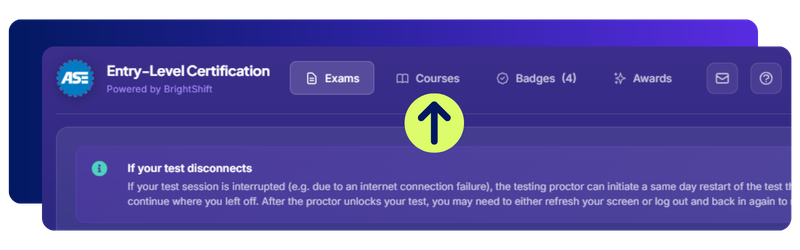
BrightShift looks a little different, with a new Courses button on the platform. This is where additional trainings, like OSHA 10, live if your school has purchased it for your program. If your instructor assigns you a course, you can find it anytime by clicking Courses. If you do not see a course you were expecting, check with your instructor.
Messaging
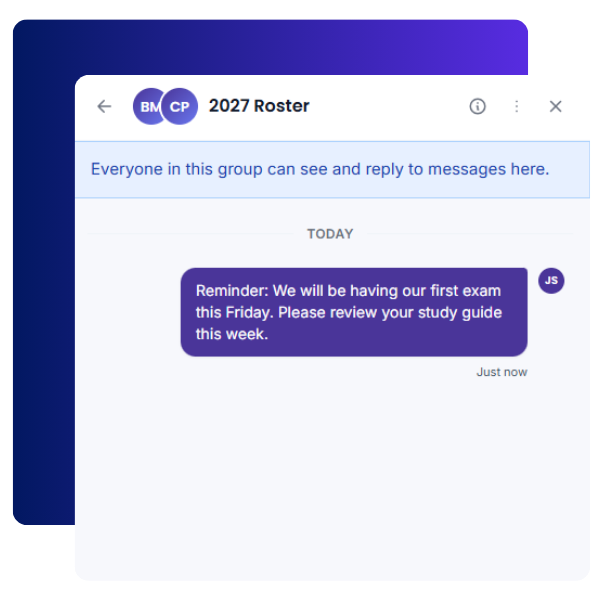
Your instructor can now message you directly in BrightShift, either to you alone or to your whole class. You can reply to your instructor, but you cannot start a new conversation or message other students. A notification appears in the top right corner of your BrightShift dashboard when you get a new message.
Achievements
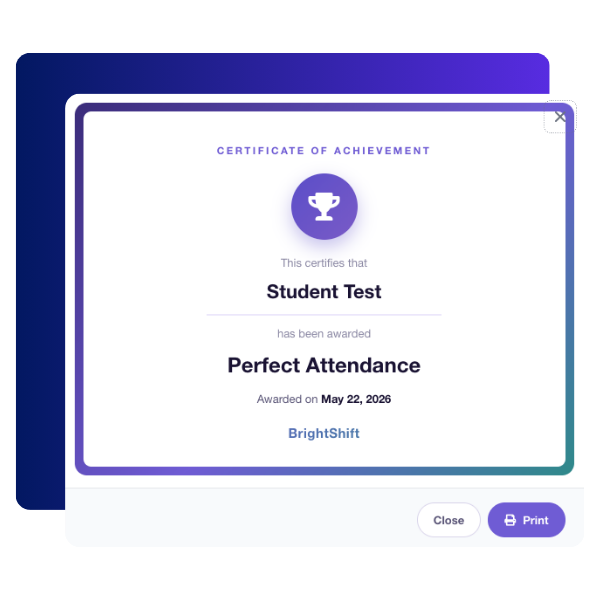
Your instructor can now give you achievement awards inside BrightShift, like Student of the Month or Perfect Attendance. You can view every achievement you earn from the Awards tab on your dashboard. Click on an achievement to see your certificate, and click Print if you want a copy.
Testing Safety Measures
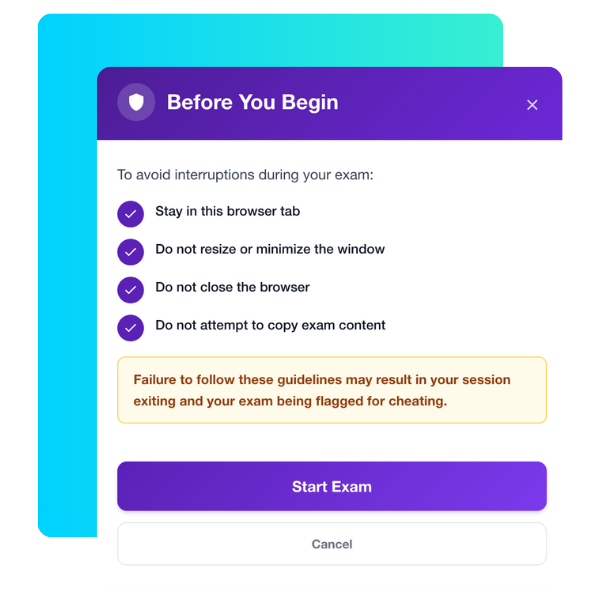
BrightShift has anti-cheating measures in place during exams and courses. Stay in the test browser window, do not resize or minimize the window, do not close the browser, and do not try to copy exam content. If any of these happen, your exam will pause, the attempt will be flagged, and your instructor will be notified.
Text-to-Speech Screen Reader Support
BrightShift now works with several free text-to-speech screen readers to support your setup:
NVDA, best for Windows users
Apple VoiceOver, best for Mac users
ChromeVox, built in for Chromebook users
Microsoft Narrator, a second option for Windows users
If you need help setting one up, talk to your instructor.